
2026-27 Term 1 ASA commences on August 31, 2026 (Monday) through January 31, 2027 (Sunday).
2026-27 Term 2 ASA commences on February 15, 2027 (Monday) through May 31, 2027 (Monday).
Registration Timeline (2026-27 Term 1)
Weekday ASA Preference-based Registration (SchoolsBuddy)
| August 10, 12:00 PM | Registration Open for Weekday ASA - ensure to click ✅ to submit your choices to school |
| August 13, 12:00 PM | Registration Close |
| August 14, 15:00 PM | 1 Allocation Confirmation email sent to families Groups allocated: You have been allocated a spot in the listed Activities. The provider will contact you directly with payment instructions. Your spot will be confirmed after payment. Groups NOT allocated: You have not been allocated a spot in the listed activities. |
| August 14, 16:00 PM | 2 Join Request Open |
| August 17, 17:00 PM | Payment Deadline (including Join Request payment) |
| August 18, 13:00 PM | 2 Additional Join Request spots may become available from this time (payment to be made within 24 hours) |
| August 18, 16:00 PM | Join Request Close |
1 Please inform the Activities Office if you wish to withdraw from an allocated activity.
2 You will receive an email notification once your request has been accepted. If your join request is approved after the payment deadline of August 17, payment must be completed within 24 hours of receiving the payment instructions.
Preference-Based Guide & Tips
The SchoolsBuddy platform is used for weekday ASA registration. Login to register HERE.
Families are required to activate their SchoolsBuddy account prior to registration day and become familiar with the platform. SchoolsBuddy accounts are provisioned using the personal guardian contact email addresses registered in PowerSchool. Do not use the @hkis.edu.hk account to attempt to login SchoolsBuddy. For help setting up an account contact help@hkis.edu.hk.
Preference Selection: Each student may select up to 5 weekday activities (Mon–Fri), ranked from P1 (highest) to P5 (lowest). Preferences can be updated anytime during the registration period. Ensure to submit your preferences.
Pre-registration: Students who have pre-registered for an ASA, including Band & Strings and the Elite Drone Club, will have used their highest preference (Preference 1). They may then use Preferences 2–5 to select from the remaining available ASA options.
Allocation: SchoolsBuddy randomly allocates activities based on submitted preferences. Due to high demand, preferred choices are not guaranteed.
- Groups allocated: You have been allocated a spot in the listed Activities. The provider will contact you directly with payment instructions. Your spot will be confirmed after payment.
- Groups NOT allocated: You have not been allocated a spot in the listed activities.
Payment & Confirmation:
| Registration is confirmed after payment. Unpaid places may be released after the payment deadline. |
| HKIS Academies (Aquatics, Basketball, Soccer) - payment settled via SchoolsBuddy. |
| Third-Party Provider Activities - payment made directly to the provider - the provider will send payment instructions via email after allocation. |
Join Request Phase:
You will receive an email notification once your request has been accepted. Payment must be completed to confirm your spot.
| Open for activities with available places. |
| Parents can check SchoolsBuddy regularly for openings. |
| If accepted, confirmation and payment instructions will be emailed. |
| Payment must be made by the instructed deadline to secure the place. |
| After this phase, parents pay contact Providers directly for availability. |
SchoolsBuddy Account:
To activate your account, please follow these steps:
An activation email will be sent to new families and inactive users before Term 1 ASA registration, and only to new families joining HKIS in Term 2 before Term 2 ASA registration.
If current families require an activation email during the school year, please contact help@hkis.edu.hk
Receive an activation email.
Activate SchoolsBuddy account using the personal contact email address registered in PowerSchool. Do not use the @hkis.edu.hk email address to login to SchoolsBuddy.
Familiarize with the platform.
If you need any assistance, please contact help@hkis.edu.hk
Registration Step-by-Step Guide & Tips
SchoolsBuddy Terminology
Container: each container holds activities in one time slot, e.g. 3-4 PM slot
Group: an ASA activity
Submitting Preferences
Log in to your SchoolsBuddy account at any time during the Preference-Based Signup period, using your personal email address.
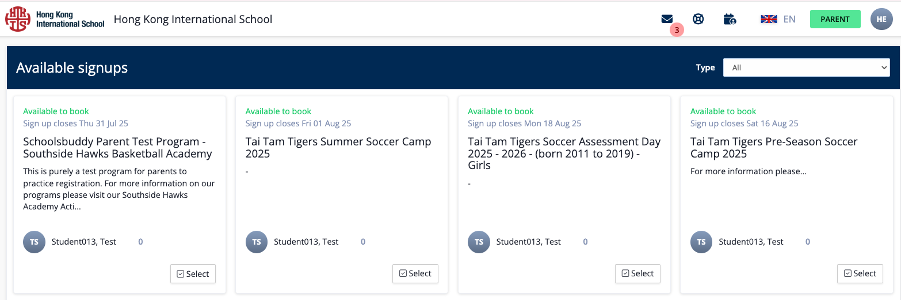
Go to Dashboard --> Available Signups
Choose a container – one container per activity time slot (i.e. 3 – 4 PM and 4 – 5 PM). If you would like to register for activities in both time slots, you will need to submit 2 sets of preferences.
(HKIS ASA) - Grades 1 to 5 - Repulse Bay - Weekdays - 3 to 4 pm - Term 1 – SY2627
(HKIS ASA) - Grades 1 to 5 - Repulse Bay - Weekdays - 4 to 5 pm - Term 1 – SY2627
After choosing a container, you’ll be able to view the available activities.
Please note: Availability depends on the student’s grade level and any prerequisites (e.g., swimming level for aquatics). Activities that a student is eligible to register for will be labeled as “Available.” For families with multiple children at HKIS, parents will see all groups available to their children from R1 to Grade 12 at the same time.
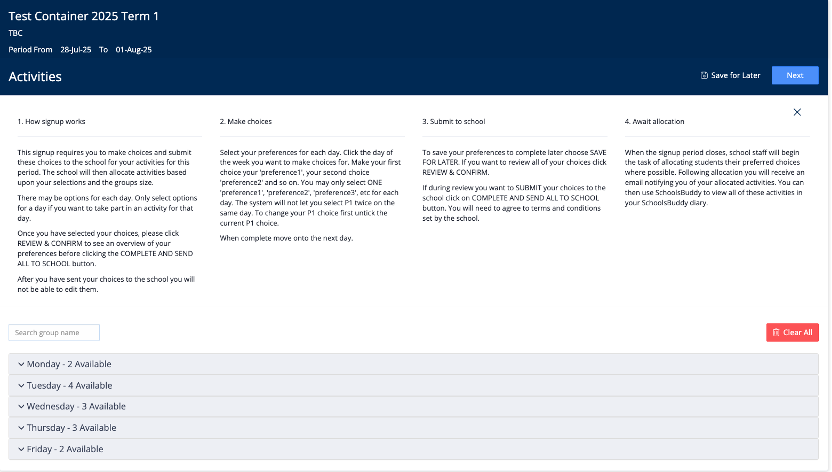
Make your activity preference selections. You may select up to 5 preferences per time slot (i.e. 3-4pm / 4-5pm), including “N/A.” Before making your selections, please review all details of each activity, including the date, time, and cost.
Please note: Activities delivered by our Third-Party Providers are labeled as “free” on the system, but they are not actually free—payment must be made directly to the providers. You can find the activity fees listed in the Activities Brochure.
Once you’ve selected your preferences, click “Next” to view a summary of your selections.
On the summary page, you’ll have the option to “Edit Choices” or “Submit to School.” You may revise and resubmit your selections as many times as needed before registration closes. Make sure to click “Submit to School” to ensure your preferences are recorded.
Allocation will be shared with families according to the published registration key dates.
Please note: each activity has a limited number of spaces. As a result, not every student will be allocated a place in their selected activities, especially for those with high demand—even if it is their first preference (P1).
Join Request Step-by-Step Guide & Tips
Join Request will open for activities with remaining places. If you're interested in an activity, you may click “Request to Join.” Before submitting a request, please check for any clashes with your confirmed allocations.
If the activity you wish to join is full, keep checking back—places may become available if another registered participant cancels during the Join Request period. Activities open for Join Request will be shown in a container labeled with a pointing hand icon.
To view available activities for Join Request, navigate to:
Dashboard → Available Signups → Request to Join
To begin, click “Request to Join.”
A confirmation email will be sent once your request is submitted.
Please note: submitting a Join Request does not guarantee approval.
For more information on this topic, visit HERE.
Cancellation
If you would like to withdraw your confirmed allocation, please contact our Third-Party Provider and the Activities Office as soon as possible, allowing places for other students to join.